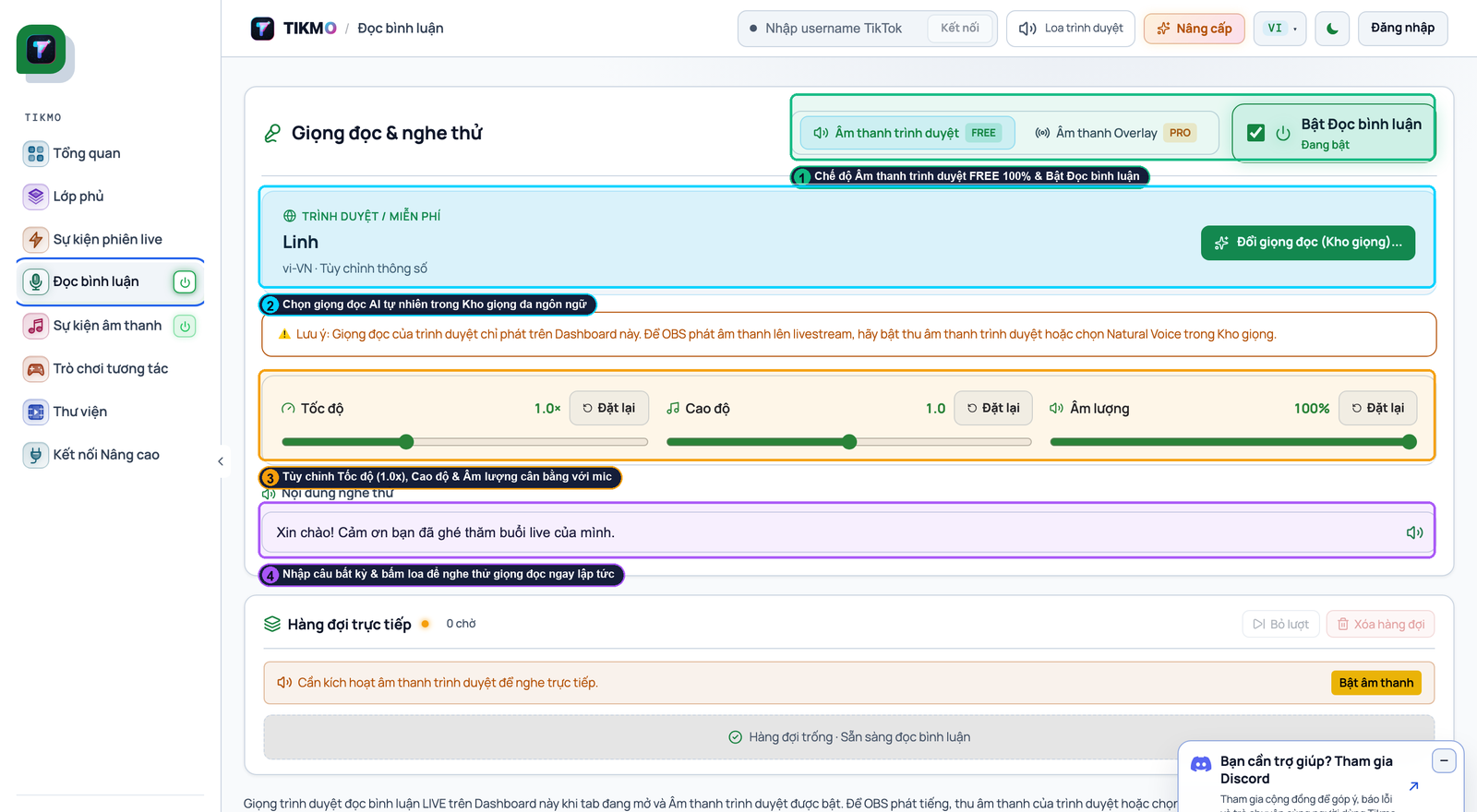
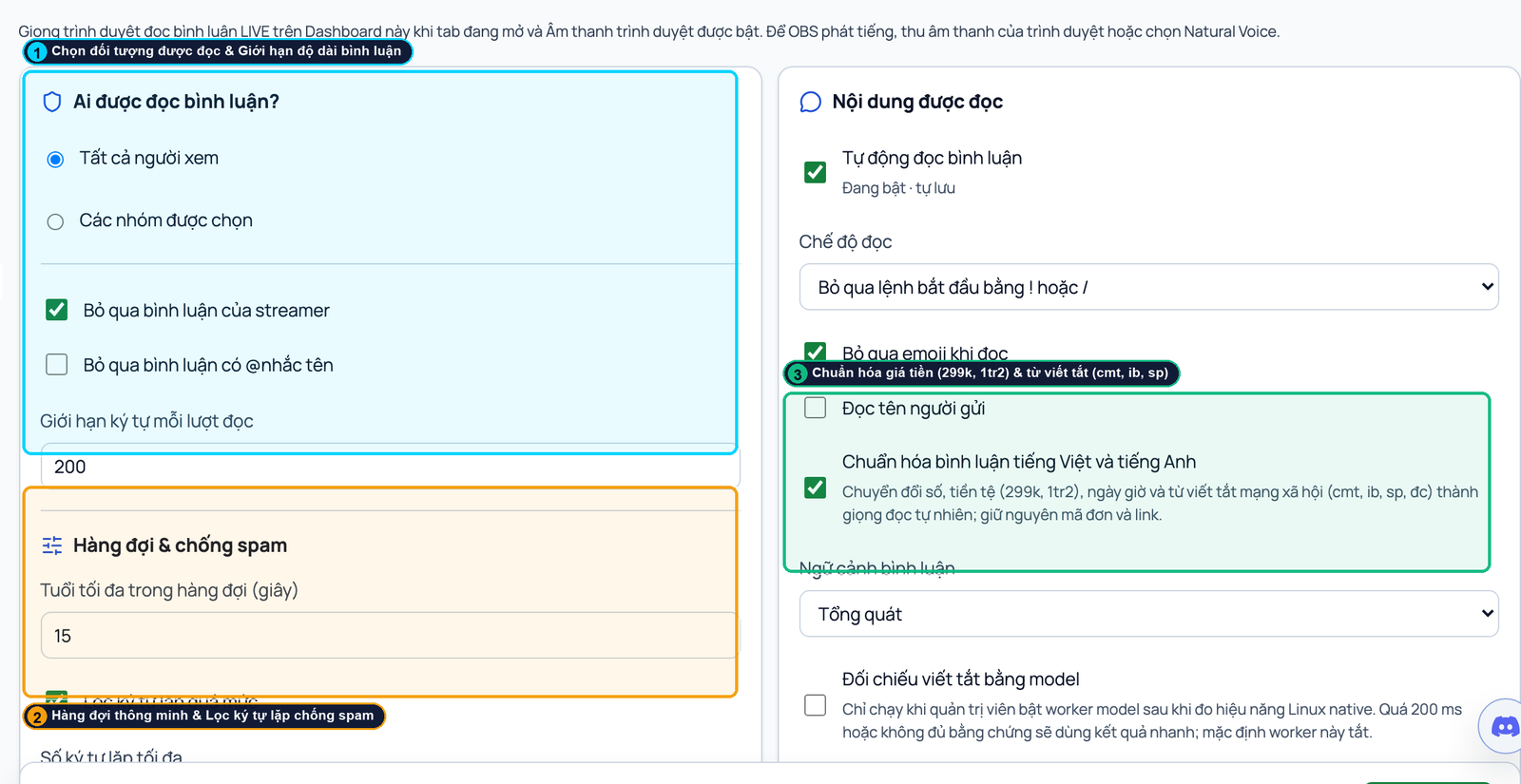
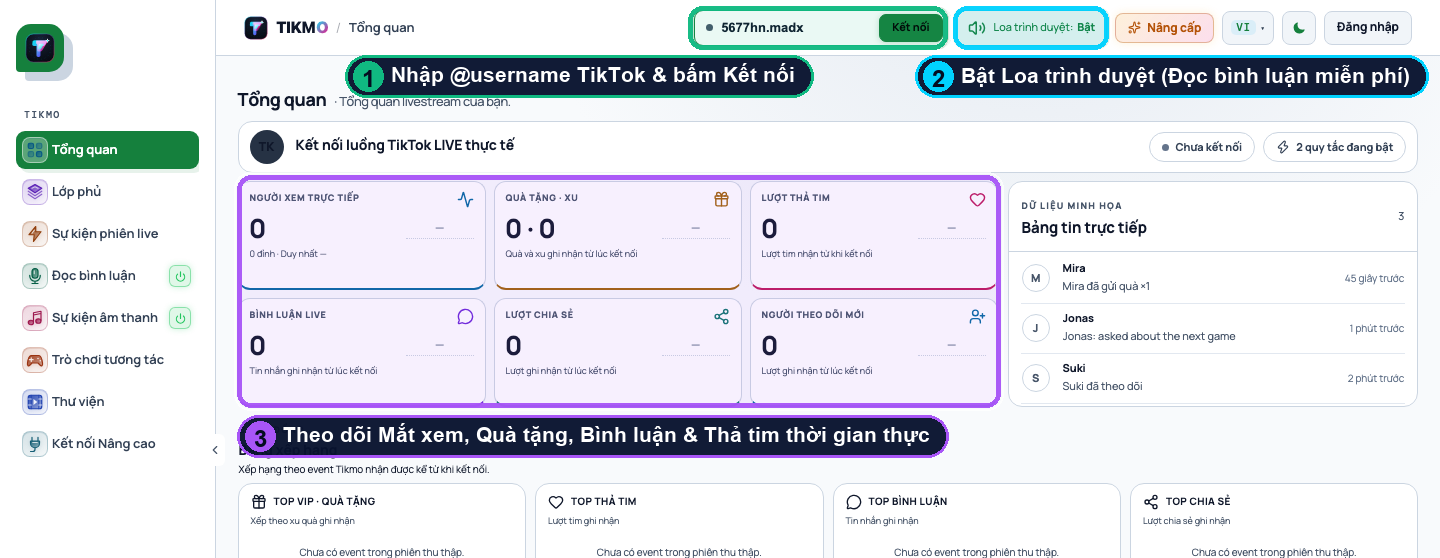
How to Create a TikTok LIVE Gift Jar & Gift Goal Widget in OBS Studio (Tikmo Guide)
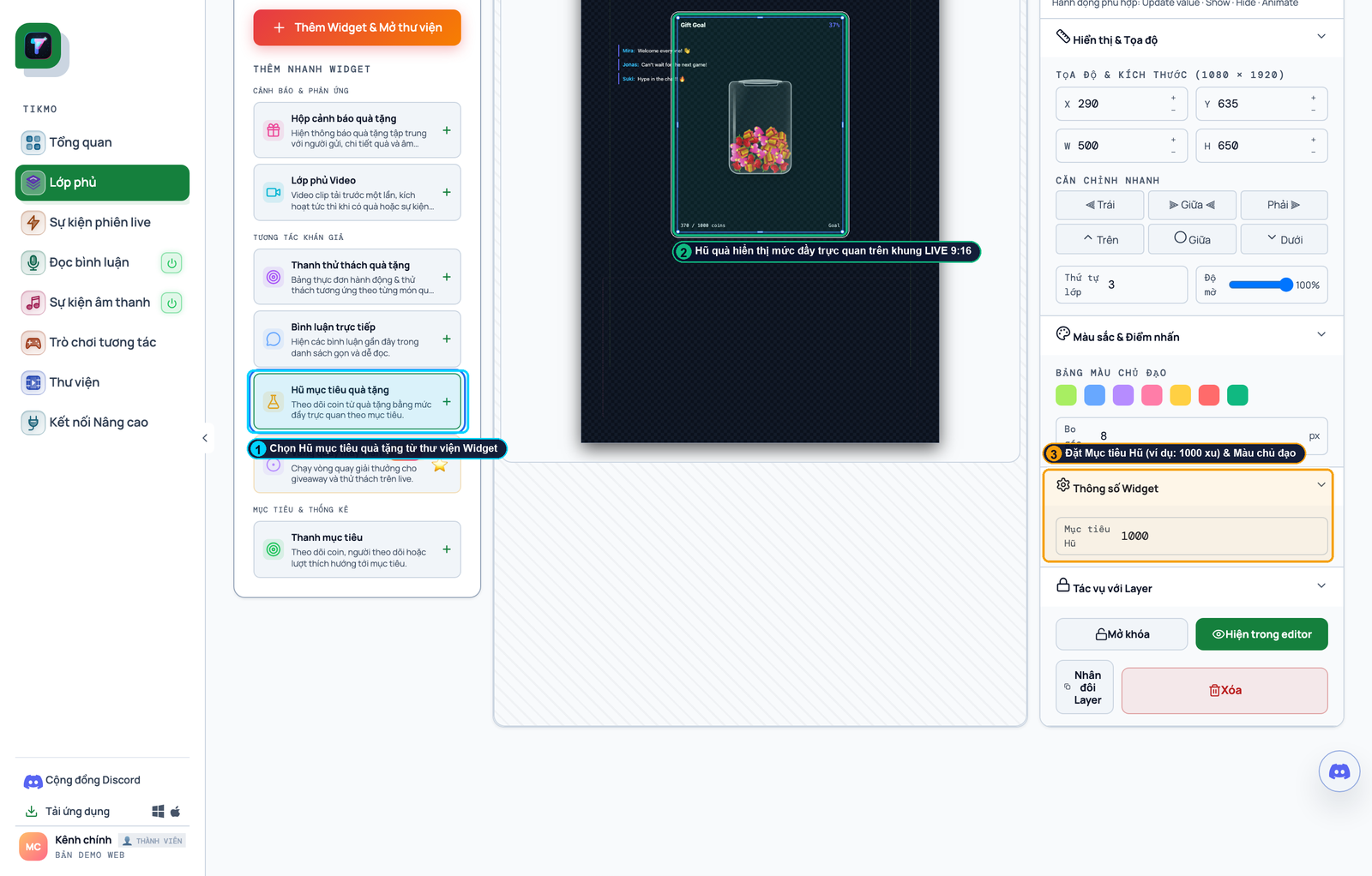
Use the goal-gradient effect to multiply TikTok LIVE coins: step-by-step annotated guide to adding a 9:16 Gift Goal bar and 3D Gift Alerts in Tikmo Studio.
Viewers are up to 3x more likely to send TikTok LIVE gifts when they see a visible Gift Jar (Gift Goal Progress Bar) approaching a milestone—such as 820 / 1,000 coins. Instead of feeling like a 1-coin Rose makes no difference, viewers see their gift immediately push the progress bar toward unlocking a community reward or launching the next interactive game round.
Here is how to build and embed a TikTok LIVE Gift Jar & 3D Alert Overlay inside Tikmo Studio in under 2 minutes.
4 Steps to Set Up Your TikTok LIVE Gift Jar in Tikmo Studio
- Add the Gift Goal Widget (Callout ①): Open Tikmo Studio Overlays and click
+next to Gift Goal and Gift Alert Box in the left Widget Library. - Position in the 9:16 Mobile Safe Zone (Callout ②): Place your Gift Goal bar in the upper-middle section of the
1080x1920canvas so TikTok’s bottom chat overlay never blocks it. - Write a Reward-Driven Goal Title (Callout ③): In the right properties panel, replace generic labels with a clear milestone payoff (e.g., *"1,000 Coins = Start Fantasy Chibi War!"* or *"500 Coins = Spin the Prize Wheel!"*).
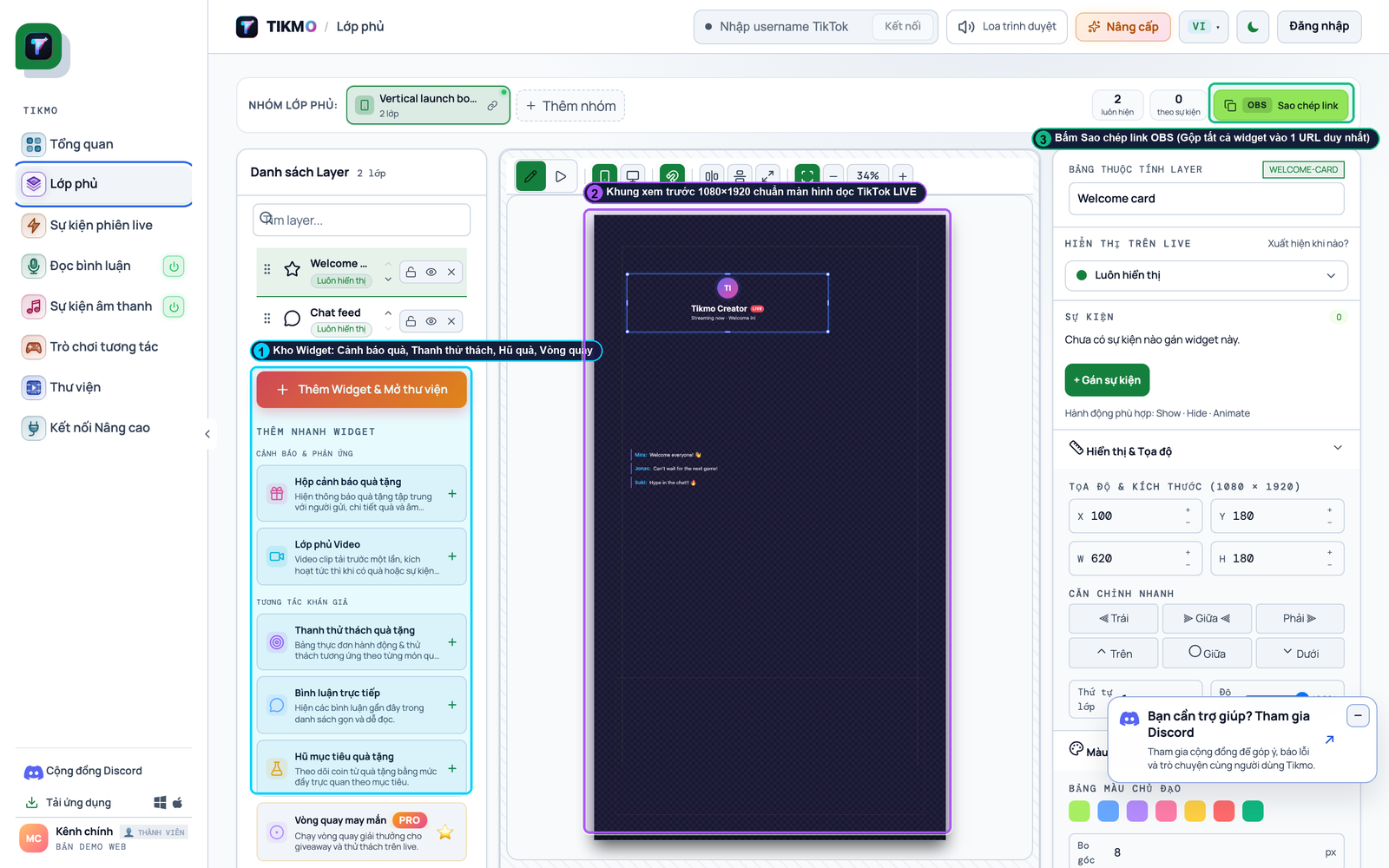
- Copy 1 OBS Link & Click Live Test (Callouts ① & ②): Click Copy OBS Link, paste it into a
1080x1920Browser Source in OBS Studio or TikTok LIVE Studio, and press Test LIVE to preview the animated progress bar fill up.
Multiply Gift Velocity by Pairing Your Gift Jar with Audio & Interactive Games
- Trigger instant hype on every coin contribution with TikTok LIVE Gift Sound Alerts and our Free Unlimited AI Comment Reader.
- Reward viewers every time the Gift Jar hits 100% by launching Fantasy Chibi War, Gear Arena 9:16, or Wizard Spin.