Fantasy Chibi War on TikTok LIVE: Complete Interactive Kingdom Battle Setup Guide
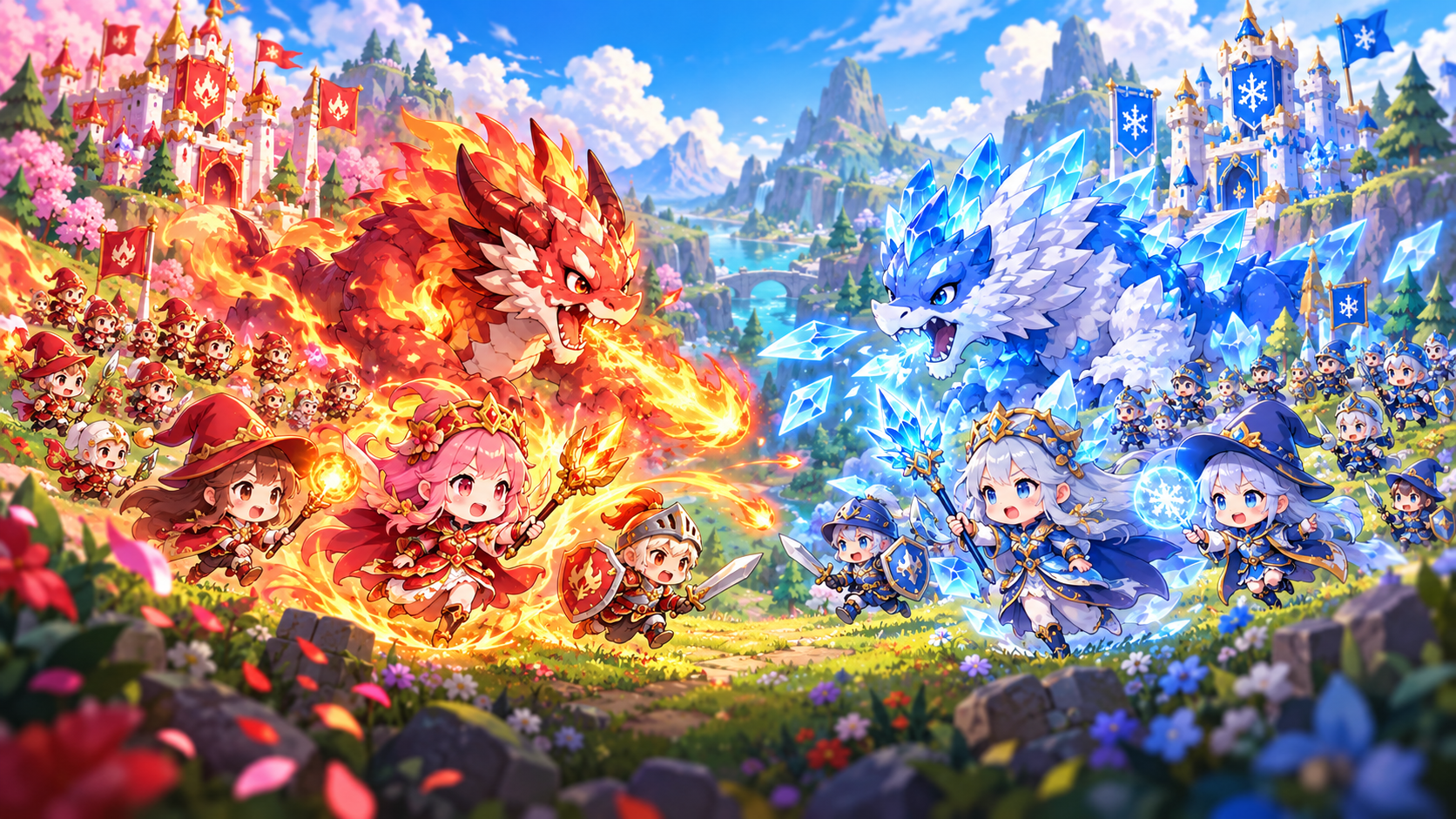
Turn every "join" comment, like burst, and TikTok gift into a live Chibi warrior carrying your viewer’s real avatar across the bridge.
Mobile viewers scrolling through TikTok LIVE decide within 3 to 5 seconds whether to stay or swipe away. Fantasy Chibi War (Fantasy Chibi World) inside the Tikmo Interactive Game Hub solves viewer retention by spawning your viewers' actual TikTok avatars and usernames directly onto a live two-kingdom bridge battlefield.
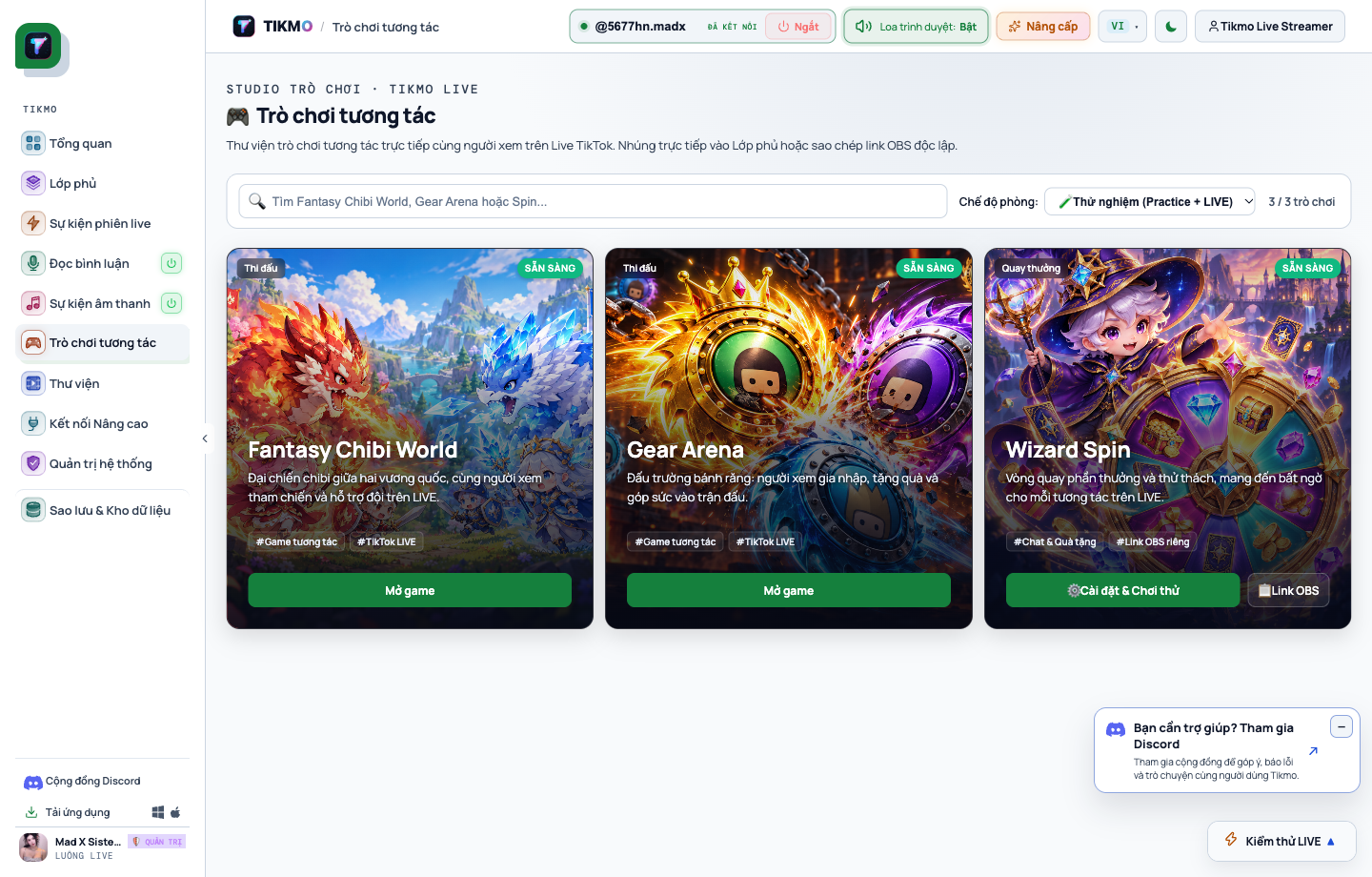
Why Fantasy Chibi War Multiplies Watch Time & Comment Velocity
Unlike passive talking streams, an interactive battle game creates a 2-second feedback loop that rewards every viewer action on screen:
- Zero-Friction Entry: Viewers simply type
joinin chat or tap 5 likes on the stream to spawn immediately as aLv.1 Recruitcarrying their profile picture. - Visible 5-Tier Hero Evolution: The left HUD displays a clear progression ladder (Lv.1 Recruit → Lv.5 Warrior → Lv.10 Knight → Lv.15 Hero → Lv.20 Awakened), motivating viewers to send gifts and level up their unit mid-battle.
- Real-Time Top 10 Leaderboard: The live TOP 10 scoreboard in the top-right corner tracks K.O. points in real time, sparking friendly rivalry between the Red and Blue kingdoms.
Pro Tip from Tikmo Studio: Switch the room mode selector to Practice + LIVE 5 minutes before going live so you can verify real TikTok room events while testing unit spawns with the built-in simulator.
4-Step Setup Guide for Fantasy Chibi War in Tikmo Studio
Here is the battle-tested configuration captured directly from a live Tikmo Studio session:
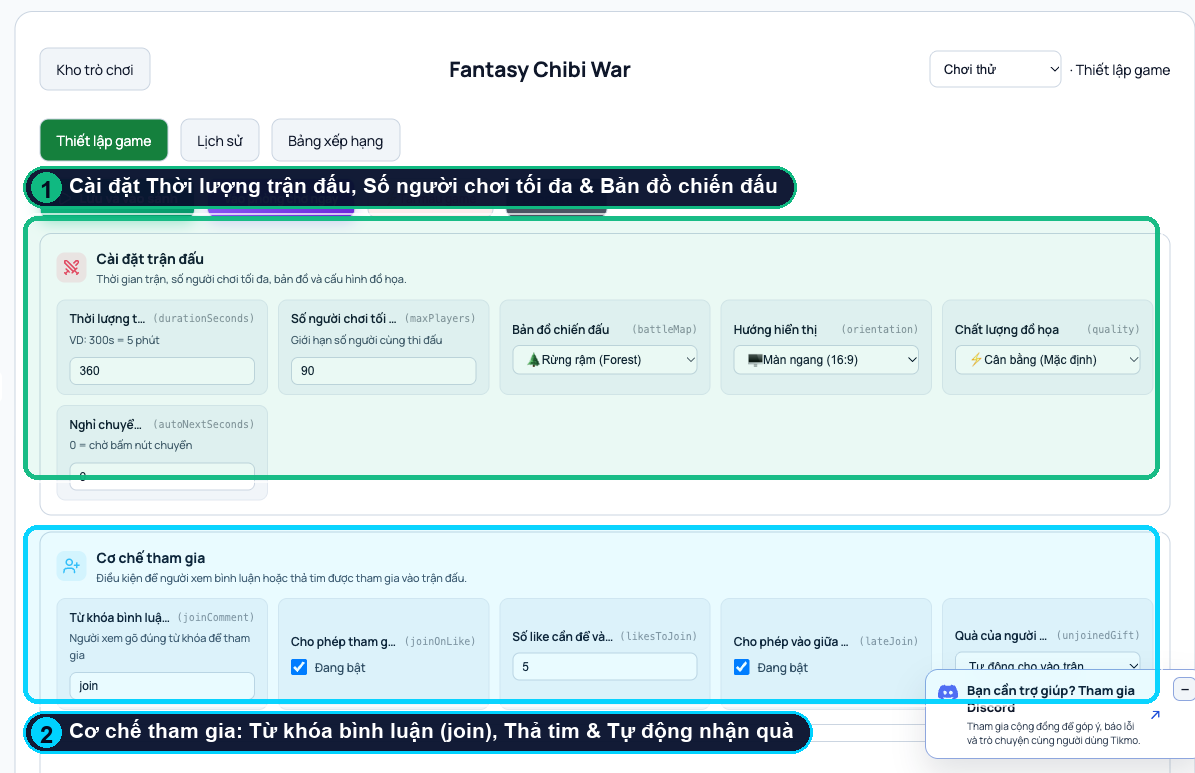
Step 1: Configure Match Duration & Map Layout
1. Open Tikmo Studio, connect your active TikTok LIVE username, and select Interactive Games from the left sidebar.
2. Click Open Game on the Fantasy Chibi World card to open the Game Setup tab.
3. Apply these recommended match settings:
- Match Duration (`durationSeconds`): Set to 360 seconds (6 minutes) for fast, high-stakes rounds.
- Max Players (`maxPlayers`): Set to 90 concurrent units on the bridge for lively crowd battles at a smooth 60 FPS.
- Battle Map (`battleMap`): Choose Forest for high visual contrast under red and blue health bars.
- Orientation (`orientation`): Select Landscape (16:9) for PC/OBS layouts or Portrait (9:16) for full-screen mobile streams.
Step 2: Enable All 3 Viewer Join Triggers
Keep your chat moving non-stop by enabling all three participation channels under Join Mechanics:
- Join Keyword (`joinComment`): Set to
joinso any viewer typing the keyword spawns immediately. - Join on Like (`joinOnLike`): Enable the checkbox and set Likes to Join (`likesToJoin`) = 5 so silent viewers who tap hearts also enter the arena.
- Late Join (`lateJoin`) & Unjoined Gift Behavior (`unjoinedGift`): Set to Auto-join match so first-time gifters immediately spawn a powered-up unit without needing to type
joinfirst.
Step 3: Launch the Arena & Copy the OBS Browser Source URL
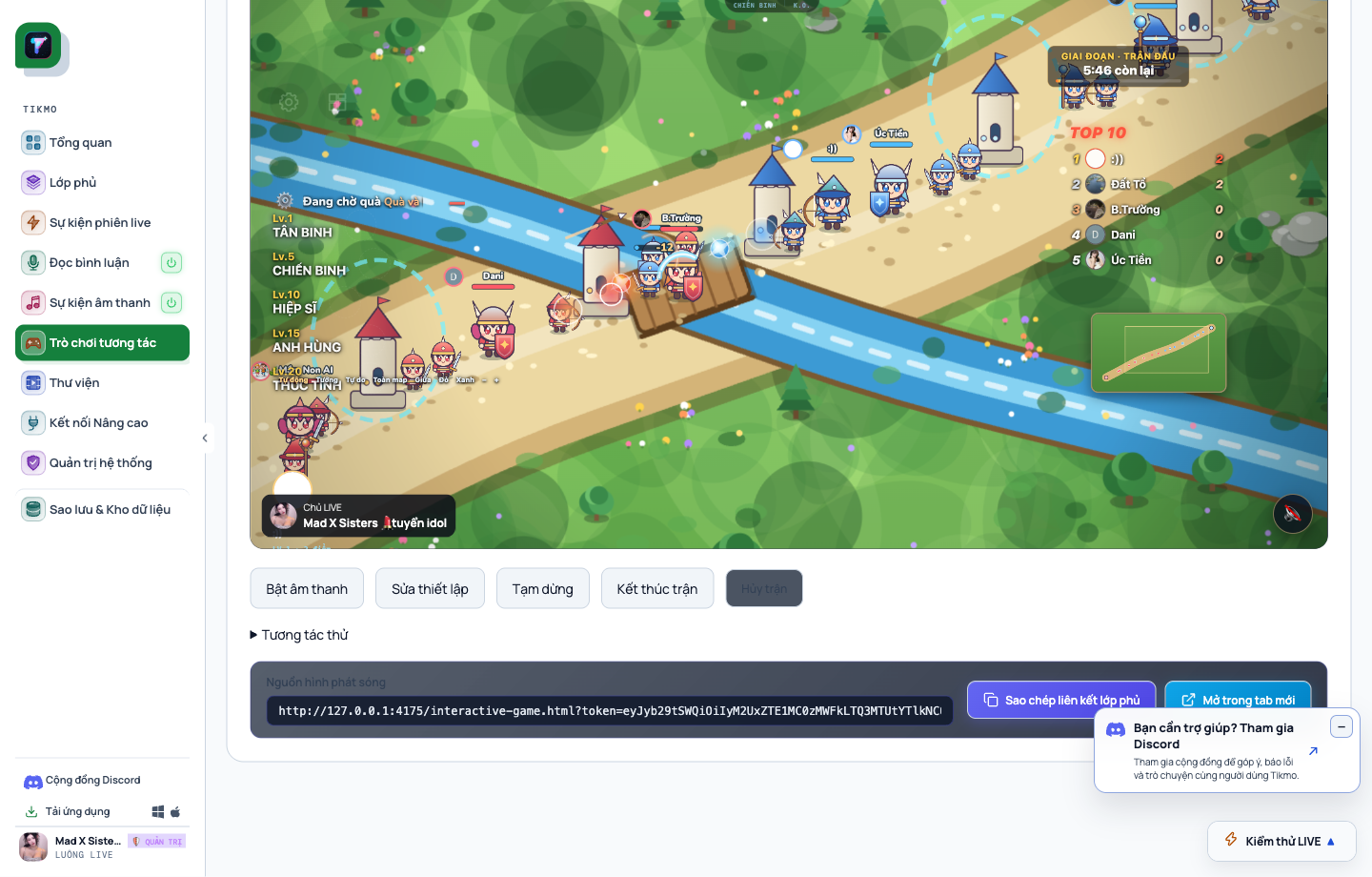
- Click Save & Enter Lobby to launch the live battlefield.
- Scroll down to Broadcast Overlay Source and click Copy Overlay Link.
- In OBS Studio or TikTok LIVE Studio, add a Browser Source, paste your tokenized URL, and match your canvas resolution. Pair it with TikTok LIVE overlay effects for a clean studio layout.
Step 4: Customize Gift Rules & Monitor the Live Event Log
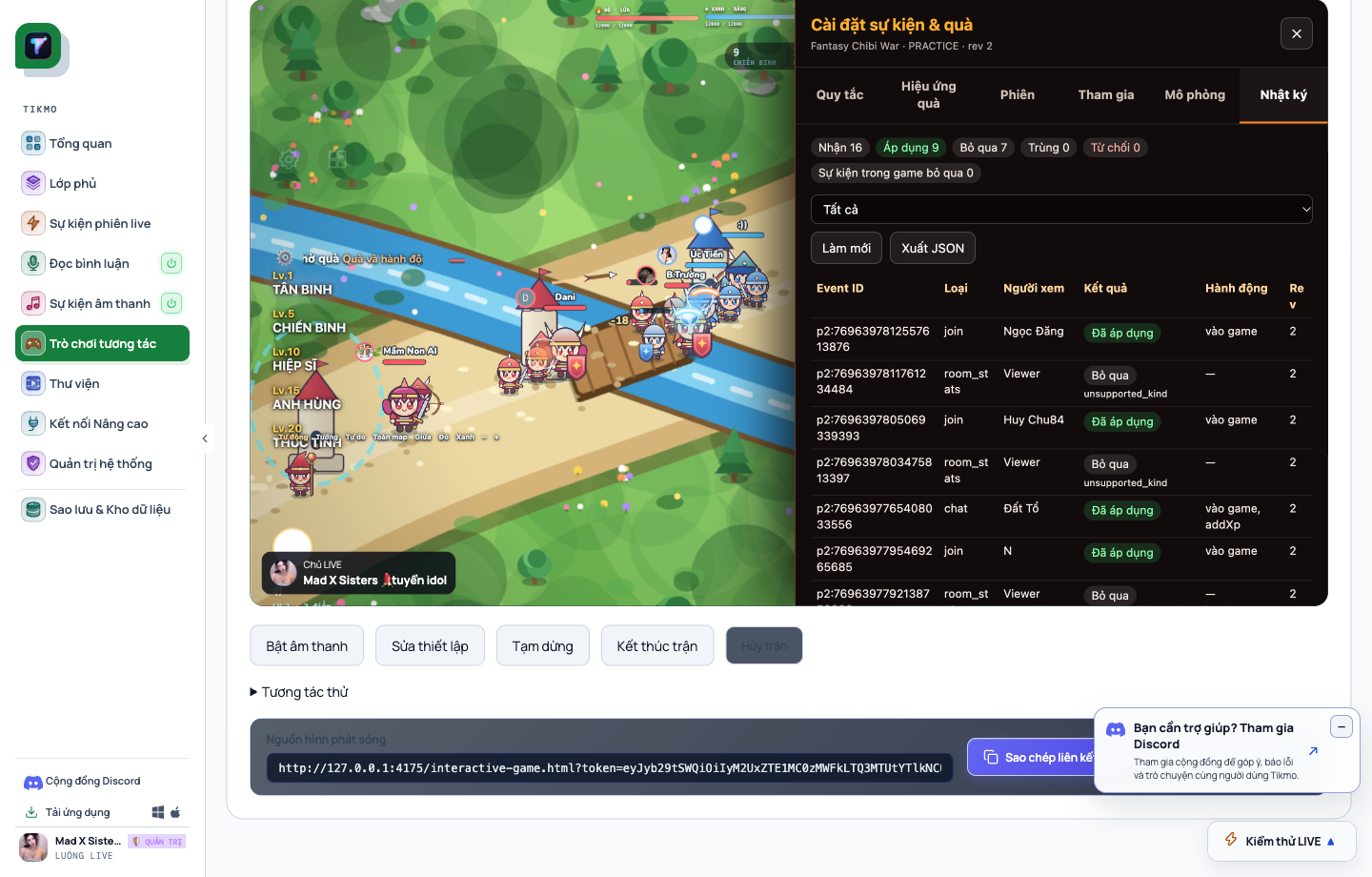
Click the gear icon inside the running arena at any time to open the Event & Gift Settings drawer:
- Rules & Gift Effects Tabs: Map TikTok gifts to instant XP boosts (
addXp), tower heals, or boss summons. Combine this with TikTok LIVE gift alerts and sound alerts so big gift streaks trigger both visual and audio hype. - Live Event Log Tab: Inspect every incoming
join,chat, andgiftevent in real time and export session logs as JSON.
Want to alternate between team bridge warfare and vertical physics combat? Check out our Gear Arena 9:16 Battle Guide and the Wizard Spin Interactive Games Hub Guide.