How to Set Up Free Unlimited AI Voice & Google TTS to Read TikTok LIVE Comments on PC & Mobile
Step-by-step visual guide to enabling 100% free unlimited TikTok LIVE comment reading on a second phone or inside OBS Studio in under 60 seconds.
Having an automated AI Voice or Google-style TTS read your TikTok LIVE comments aloud eliminates awkward silence on stream and gives every viewer instant recognition the moment they type in chat. Better yet, you do not need a gaming PC or a paid monthly subscription to set it up.
This guide walks you through both setup methods in Tikmo Studio: streaming from a phone (using a 2nd mobile device as your speaker) and streaming on PC with OBS Studio or TikTok LIVE Studio.
Method 1: Read TikTok LIVE Comments Aloud on Mobile (No PC Required)
If you broadcast directly from your primary phone’s camera and stand a few feet away showing products or working, use a second phone, tablet, or laptop as a dedicated voice assistant:
1. Start your TikTok LIVE broadcast on your primary phone as usual.
2. Open Safari or Chrome on your second device and go to Tikmo Studio.
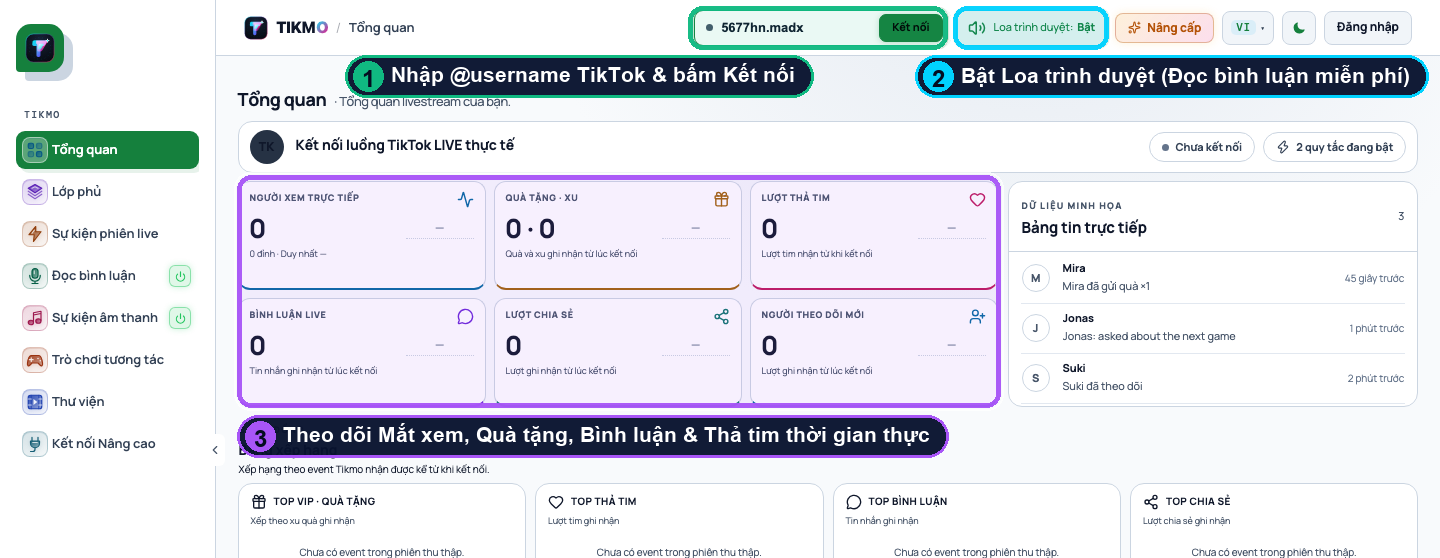
3. Follow the numbered callouts in the top bar (shown above):
- Callout ①: Enter your live TikTok @username (for example, 5677hn.madx) and tap Connect. No TikTok password or login credentials are required.
- Callout ②: Tap Browser Speaker: ON so the button turns green.
- Turn up the speaker volume on your second device (or pair it with a portable Bluetooth speaker). Every incoming live chat comment will now be read aloud automatically!
Studio Audio Tip: Place your speaker 50–80 cm away from your streaming phone’s microphone so viewers hear a lively background voice prompt without causing audio feedback.
Method 2: Set Up Free Unlimited TTS on PC (OBS Studio & TikTok LIVE Studio)
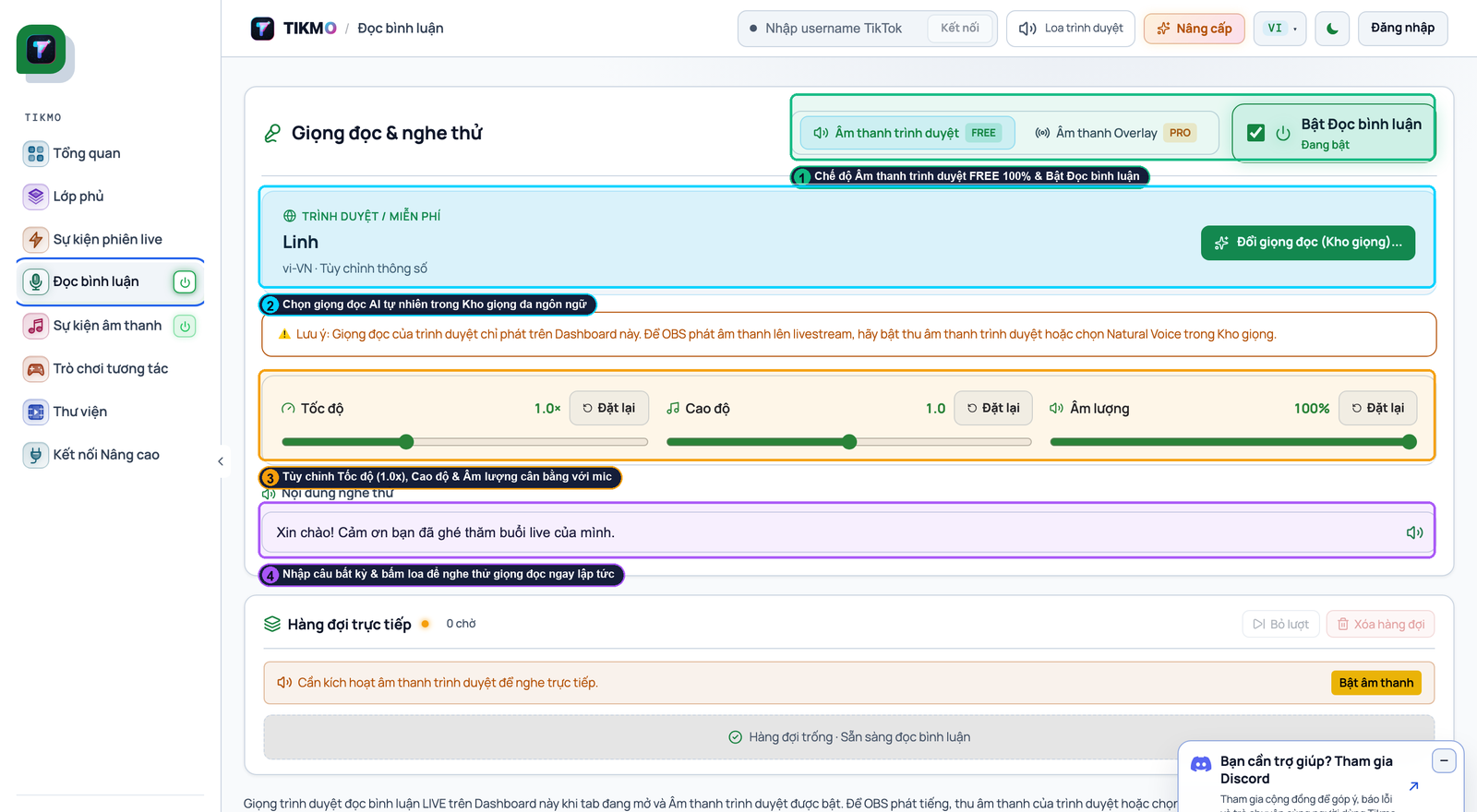
- Open the Comment Reader tab from the left sidebar and switch the master toggle to Enabled (Callout ①).
- Select Browser Audio (`FREE`) for unlimited free daily comment reading, or select Tikmo AI for neural studio voices.
- Under Callout ②, pick your voice language, set Speed to
1.05x – 1.15x, and click Test Voice.
Configure Anti-Spam Filters & Slang Normalization
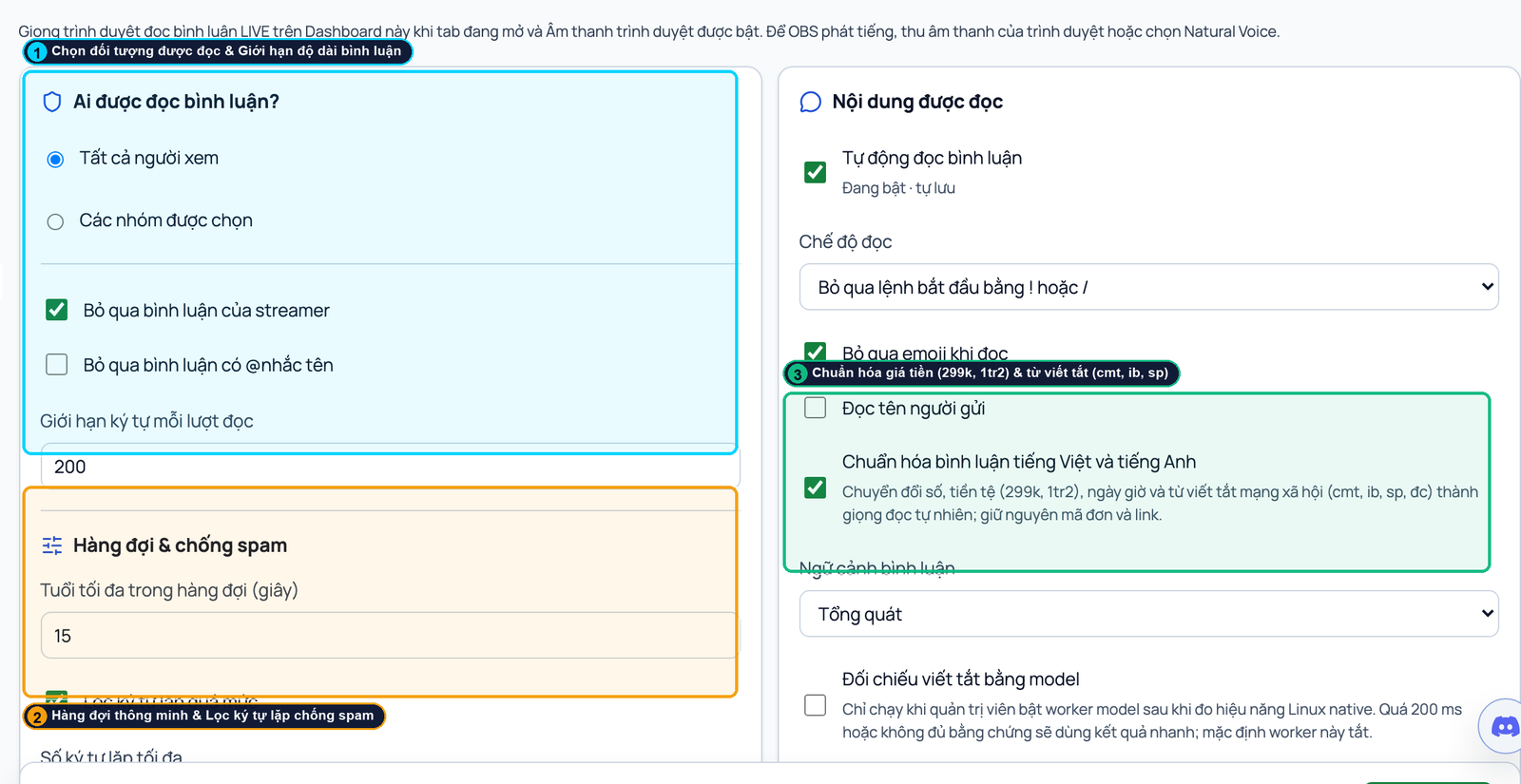
- Callout ①: Choose who triggers TTS (All Viewers, Followers, or Gifters) and set the Character Limit = `200`.
- Callout ②: Set Max Queue Age = `15s` to prevent backlog lag during chat rushes, enable Filter Excessive Repeated Characters, and check Ignore commands starting with `!` or `/`.
- Callout ③: Enable Normalize Vietnamese & English Comments so shorthand numbers, prices (
299k), and chat slang are pronounced naturally.
Want to turn your active chatters into top gifters? Combine your free TTS setup with a TikTok LIVE Gift Jar in OBS, automated Gift Sound Alerts, and live interactive games in our Complete A–Z Tikmo Studio Setup Guide.