Complete Tikmo Studio Setup Guide (A–Z): Connect TikTok ID, Gift Jar, Sound Alerts, Free TTS & Interactive Games
The ultimate annotated walkthrough: connect your TikTok LIVE username in 10 seconds, add a 9:16 Gift Jar, set up MP3 gift sound alerts, enable free unlimited TTS, and launch interactive games.
Turning a standard TikTok LIVE broadcast into a high-converting interactive show—where an AI voice reads comments aloud for free, every Rose fills a glowing Gift Jar with custom sound effects, and viewers spawn into live battles on screen—takes less than 5 minutes inside Tikmo Studio.
Follow this complete, step-by-step annotated visual guide from connecting your TikTok ID to launching interactive games that motivate viewers to send gifts.
---
Step 1: Enter Your TikTok @username to Connect in 10 Seconds
Tikmo Studio uses Zero-Credential Connection—you never share your TikTok password, OTP, or stream key.
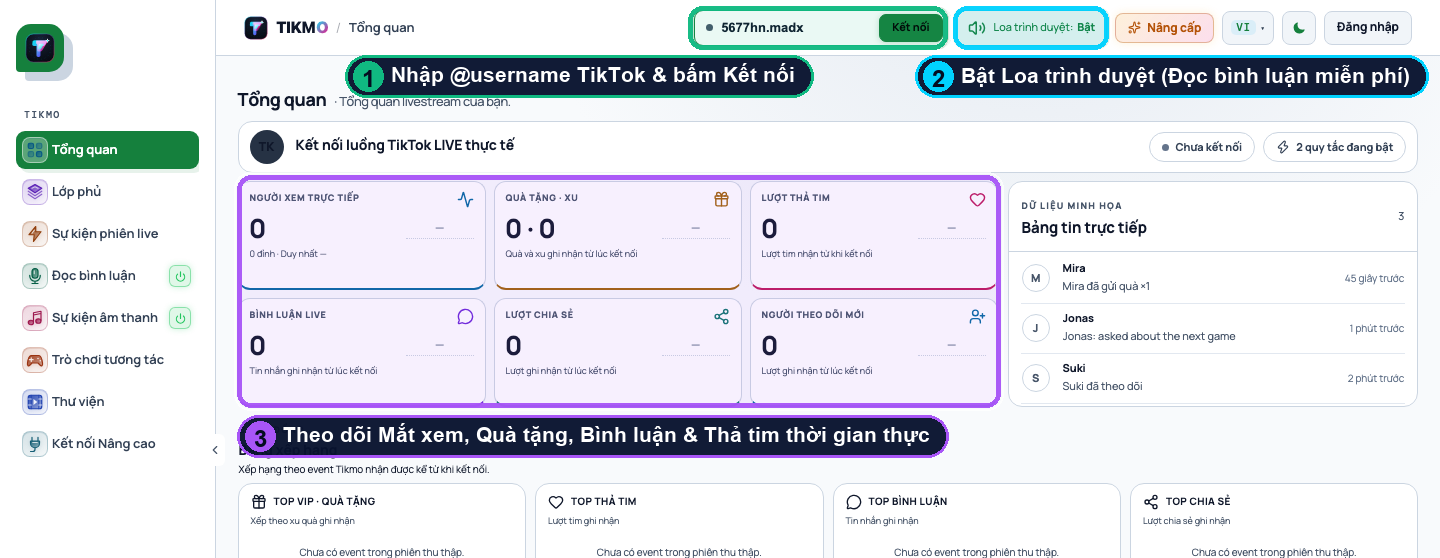
- Open Tikmo Studio Overview.
- Callout ①: Type your live TikTok
@usernameinto the top bar and click Connect. - Callout ②: Click Browser Speaker: ON to hear TTS and sound alerts directly through your device speakers.
- Callout ③: Watch your real-time Live Viewers, Gifts · Coins, Likes, Comments, and Top VIP Leaderboard update immediately.
---
Step 2: Enable Free Unlimited TikTok LIVE Comment Reading (TTS)
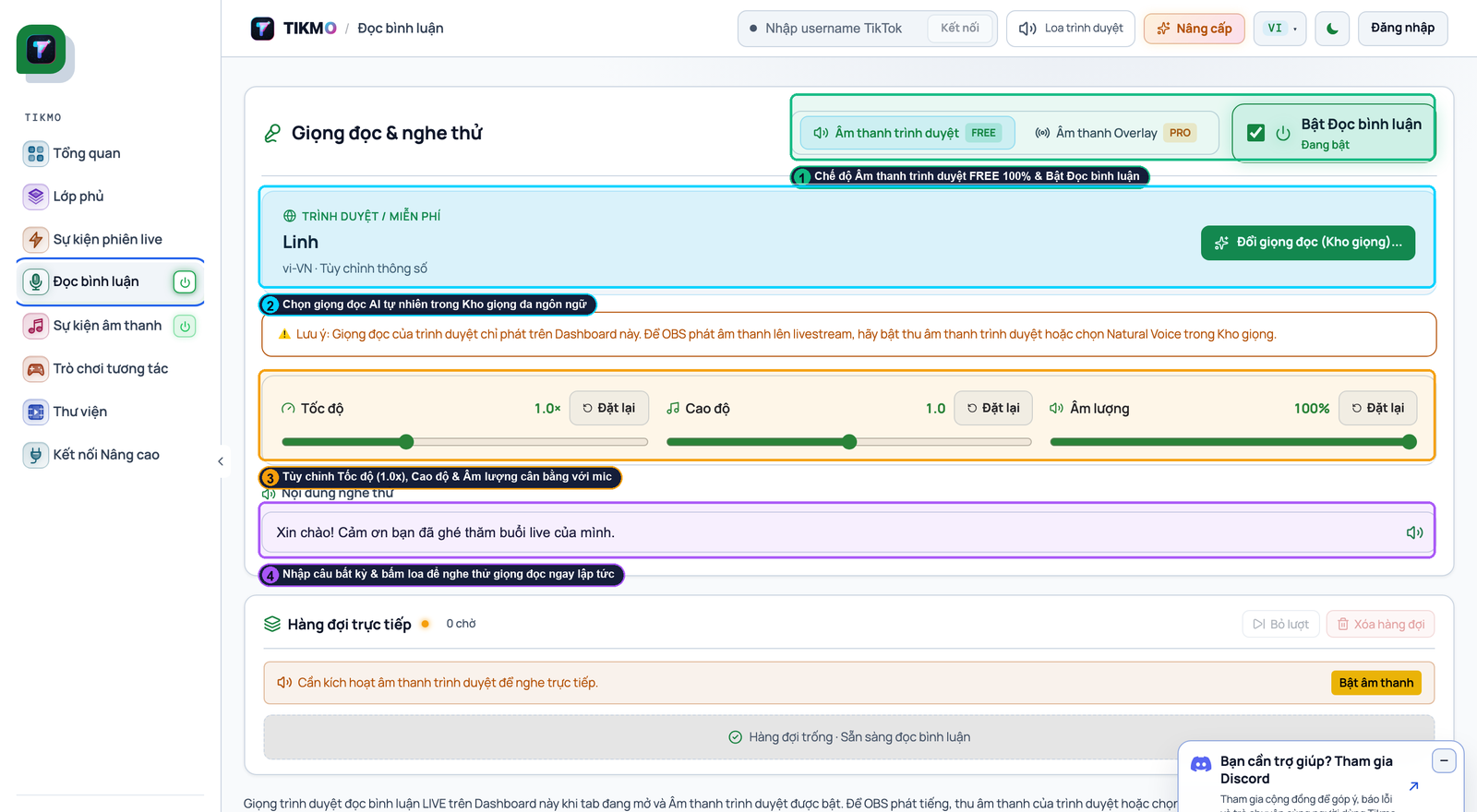
- Open Comment Reader in the left sidebar.
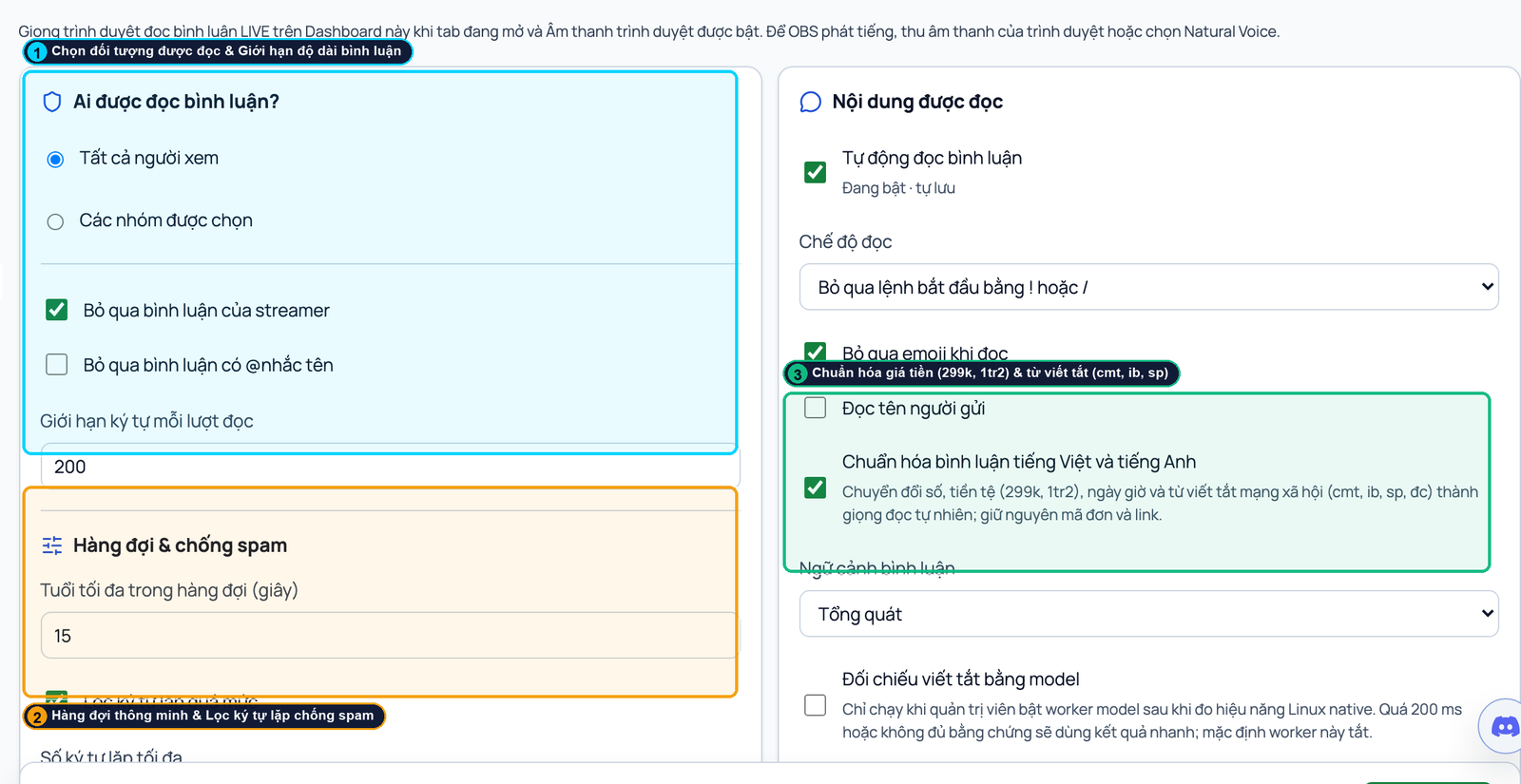
- Callout ①: Toggle the reader ON and choose Browser Audio (`FREE`) for 100% free unlimited daily reads.
- Callout ②: Adjust voice speed (
1.05x – 1.15x) and enable smart anti-spam filters (200char cap,15smax queue age, slang/price normalizer). Read our full Free TikTok LIVE Comment Reader Comparison.
---
Step 3: Set Up the Gift Jar (Gift Goal) & 3D Alert Box on a 1080x1920 Canvas
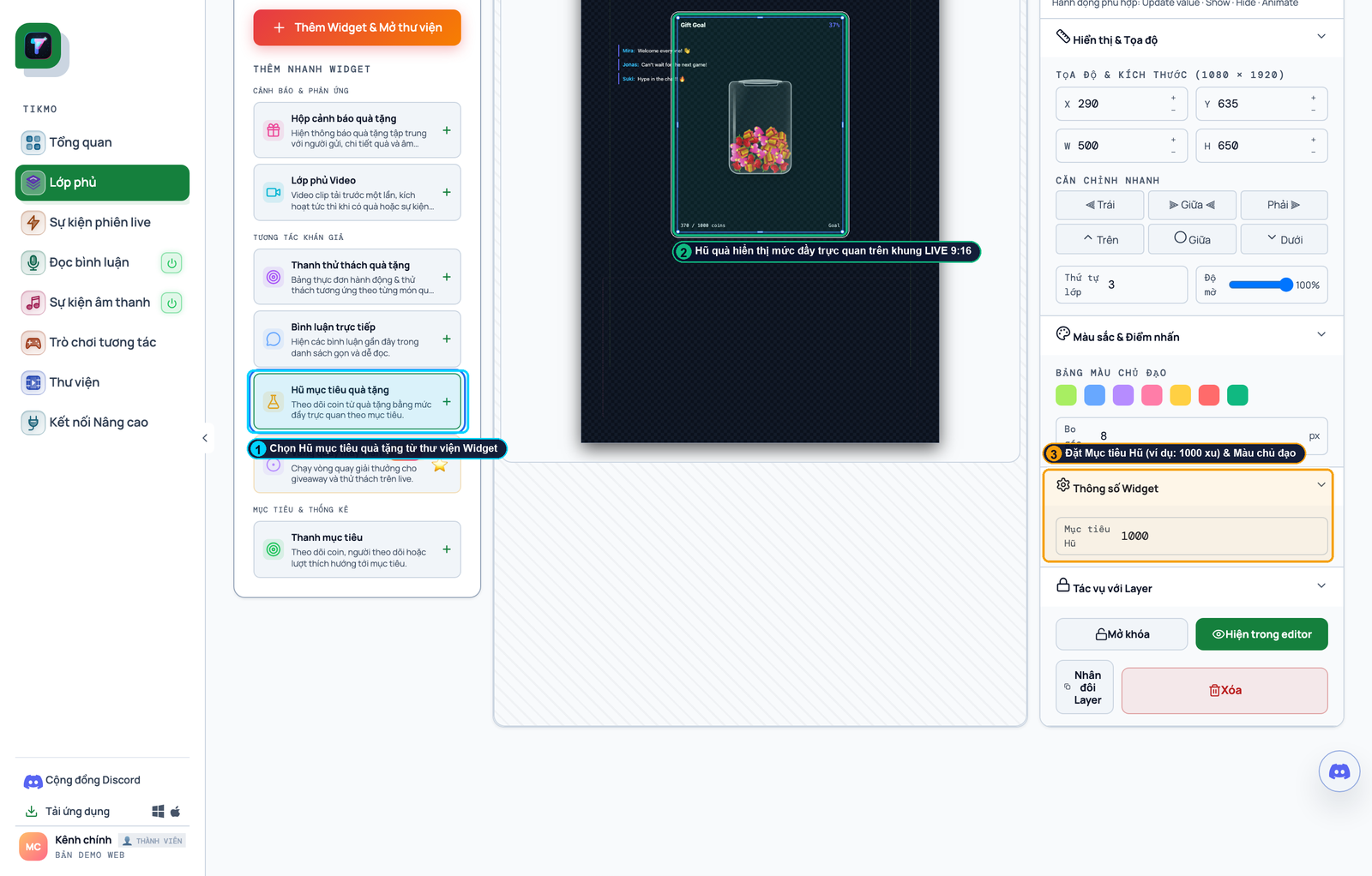
- Open Overlays to load the vertical
1080x1920canvas editor. - Callout ①: Click
+on Gift Goal (Gift Jar) and Gift Alert Box in the Widget Library. - Callout ②: Drag the Gift Goal bar into the upper-middle safe zone so TikTok’s mobile chat never covers it.
- Callout ③: Set an action-driven Goal Title (e.g., *"1,000 Coins = Launch Chibi Kingdom Boss Fight!"*) and target coin amount.
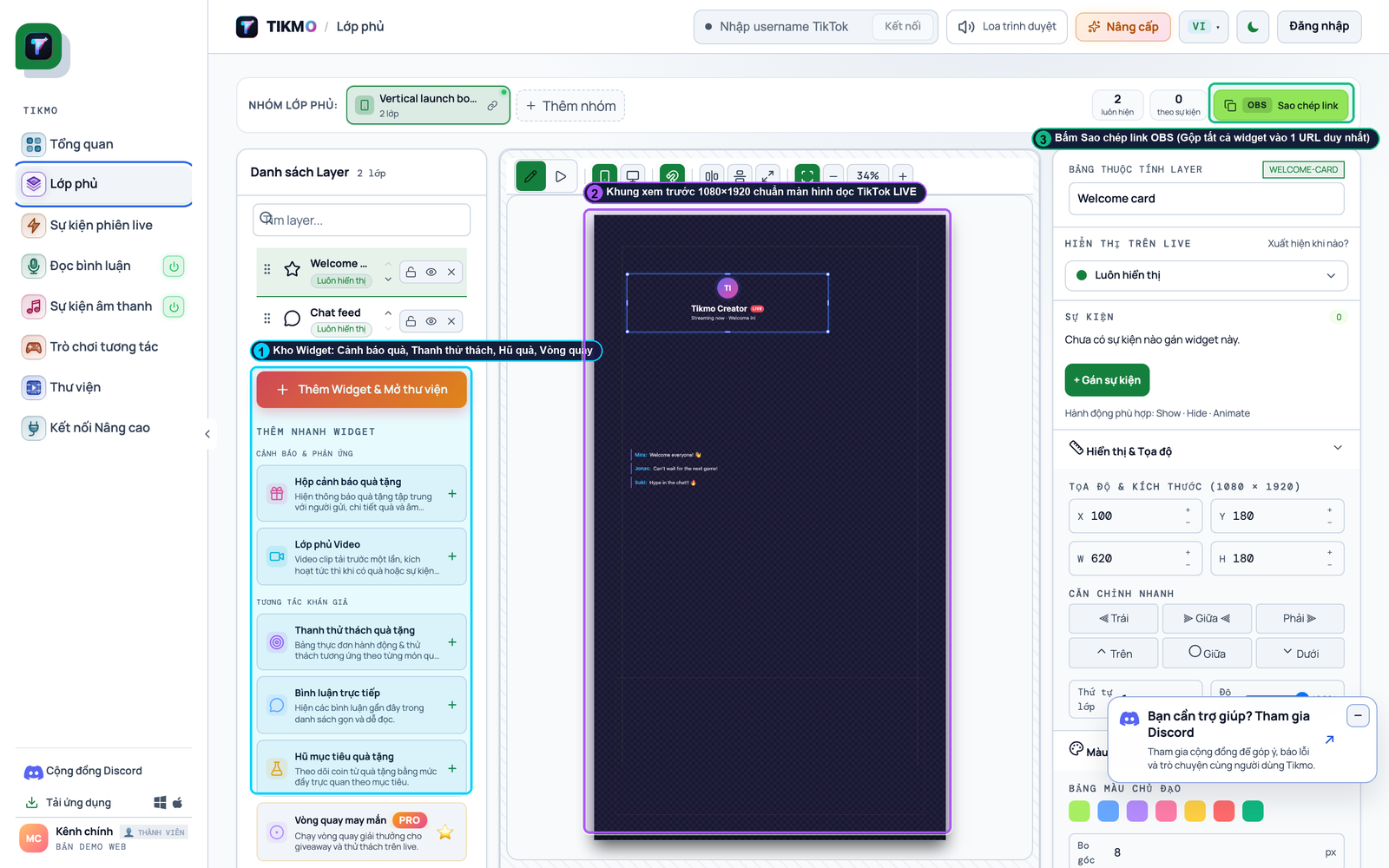
- Click Copy OBS Link (Callout ①), paste it into a single
1080x1920Browser Source in OBS Studio, and click Test LIVE (Callout ②). See our dedicated Gift Jar & Gift Goal Setup Guide.
---
Step 4: Configure Gift Sound Alerts & "When – Then" Automation Rules
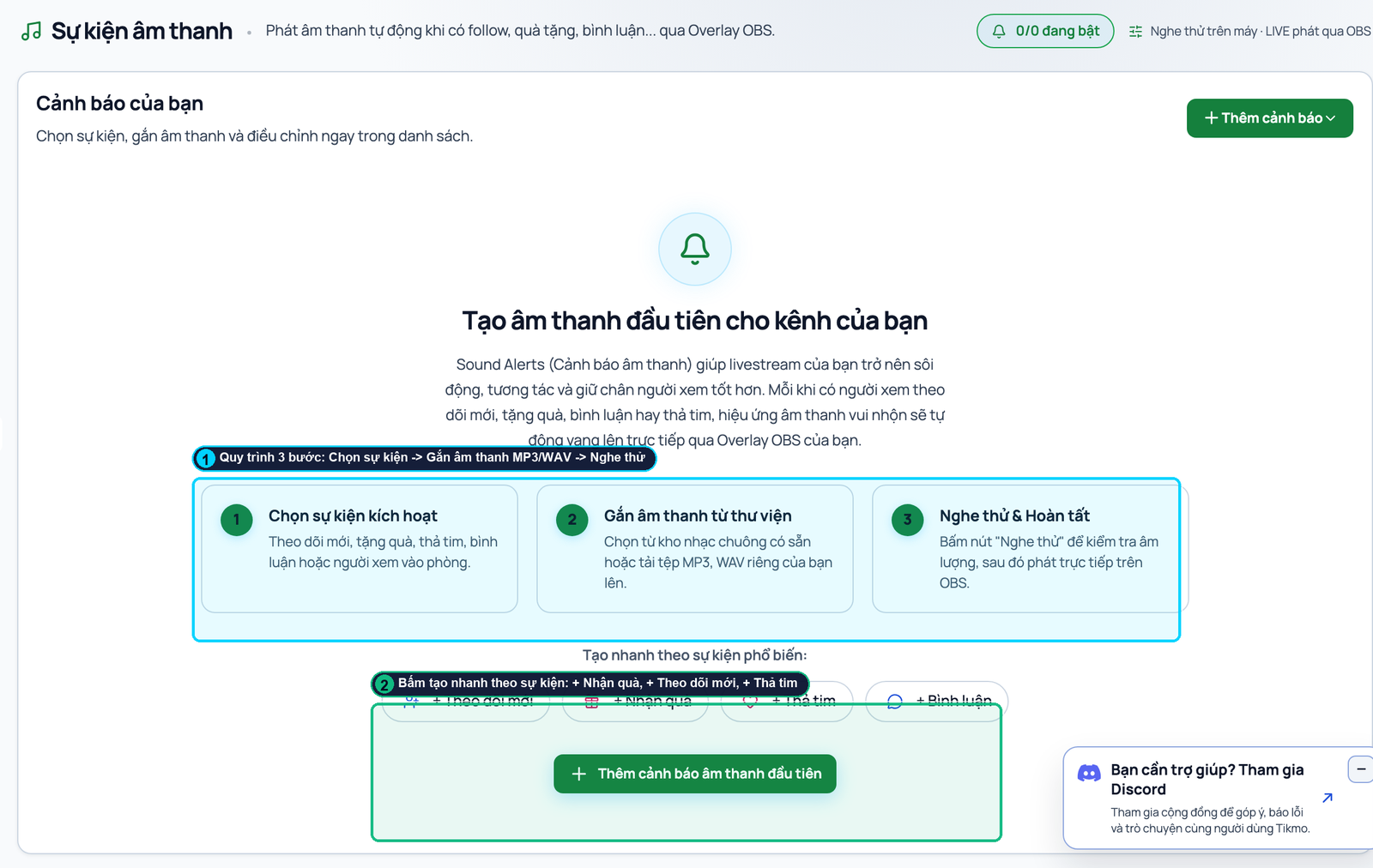
- In Sound Alerts, upload custom MP3/WAV sounds and map each clip to a specific TikTok gift or minimum coin threshold (Callout ① & ②).
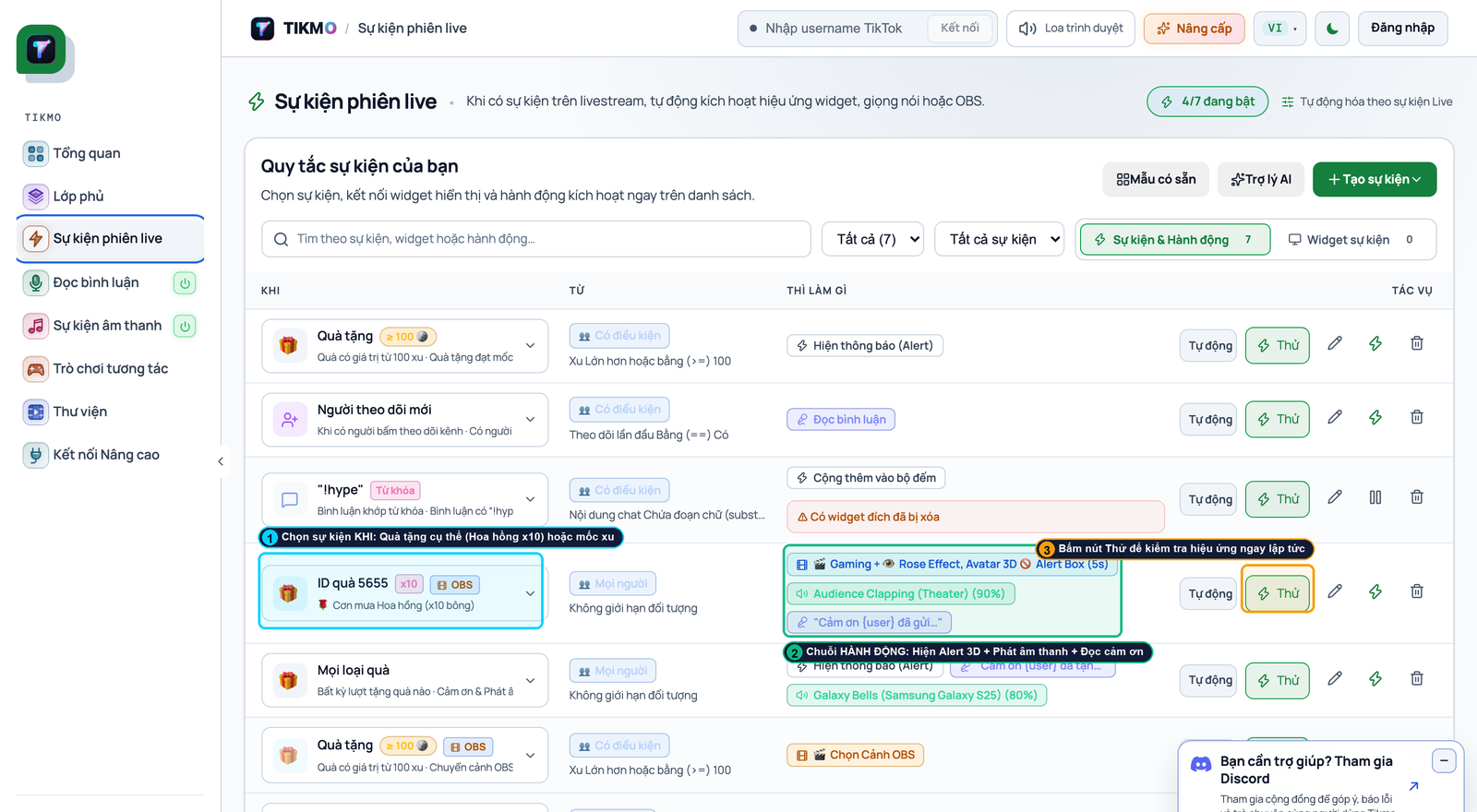
- In Live Event Rules, chain WHEN Gift Received (Callout ①) $ ightarrow$ THEN Show 3D Alert + Play Sound + Speak AI Thank-You (Callout ②) and test it instantly with Try (Callout ③). Learn more in our TikTok LIVE Gift Sound Alerts Guide.
---
Step 5: Launch Interactive Games That Motivate Viewers to Send Gifts
Once your Free TTS, Gift Jar, and Sound Alerts are running, open Interactive Games to turn passive viewers into competitive gifters:
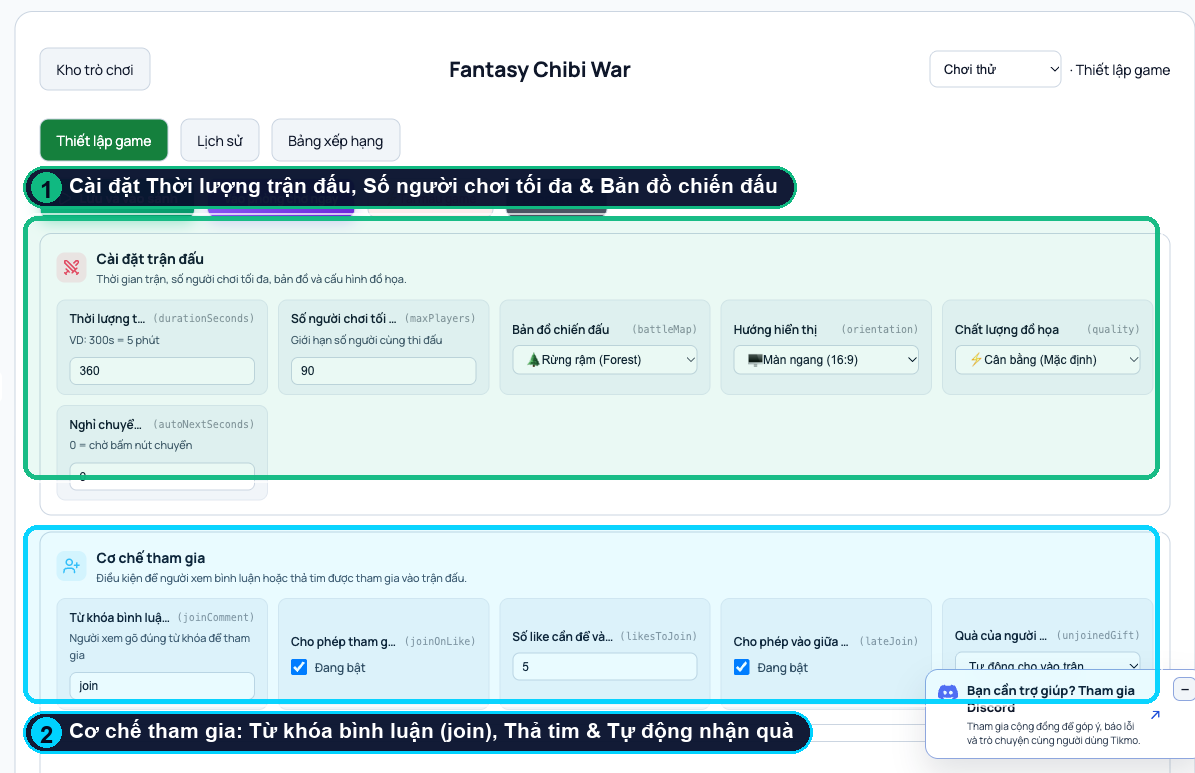
- Fantasy Chibi War: Viewers type
joinor tap 5 likes to spawn their avatar on the bridge and send gifts to evolve through 5 hero tiers.
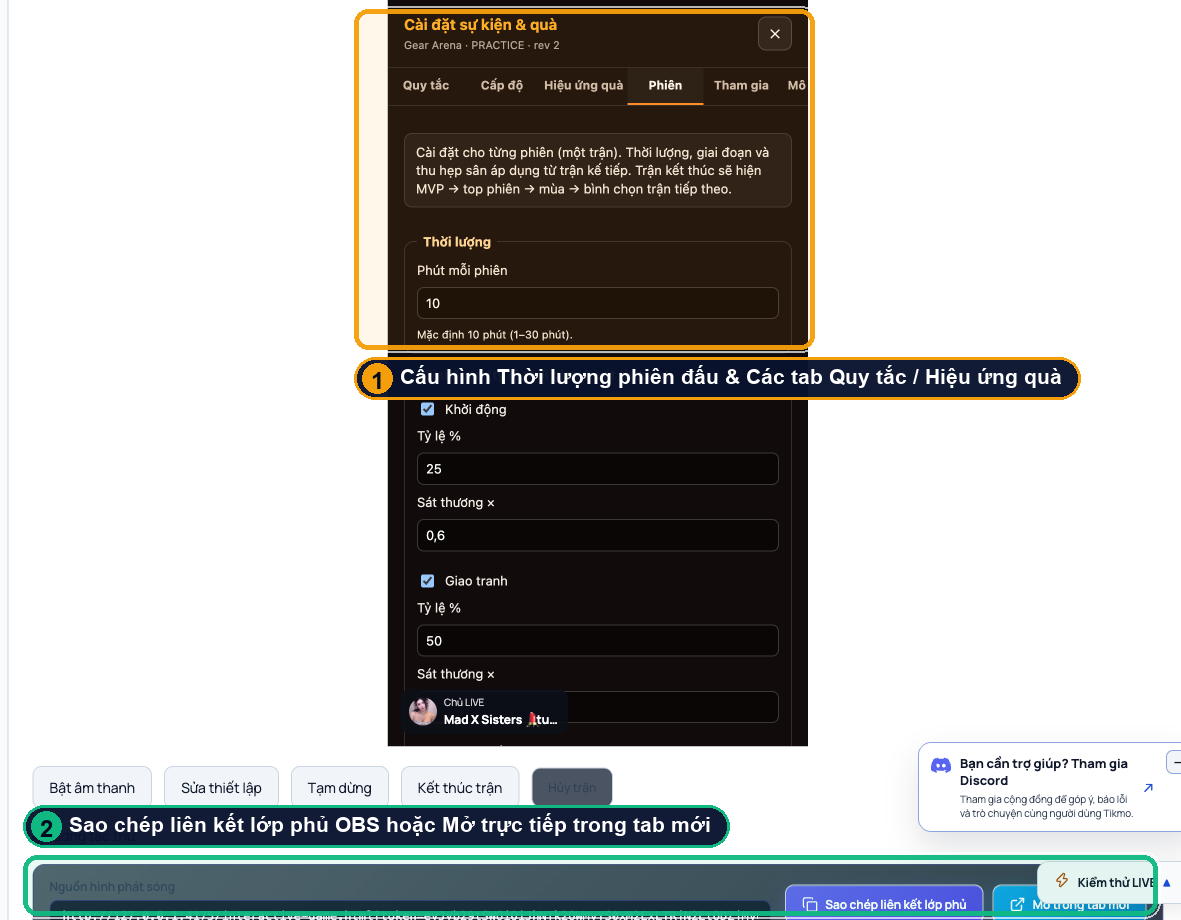
- Gear Arena 9:16: Vertical 9:16 physics combat with 6 Weapon Forge tiers and an automated post-match MVP Ceremony.
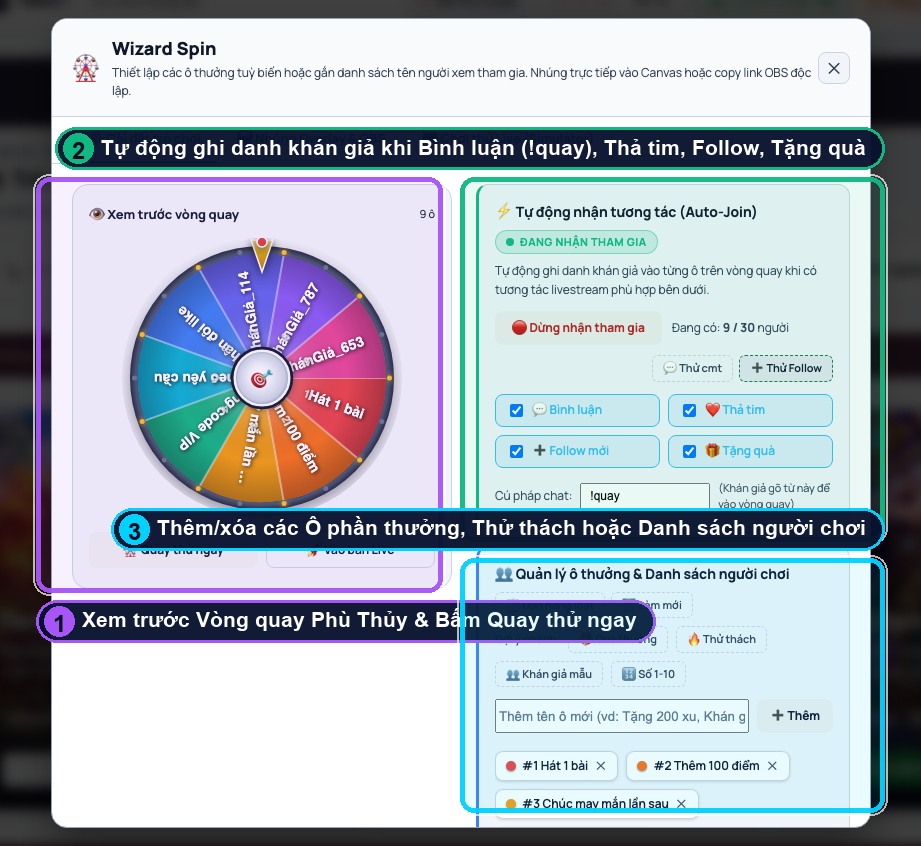
- Wizard Spin: Automatically collects viewers who comment, like, follow, or gift onto a live prize wheel.