TikTok LIVE Text-to-Speech (TTS) Comment Reader: Voice Selection, Queue Control & Anti-Spam Guide

Set up an AI voice comment reader for TikTok LIVE that greets viewers, thanks gifters, filters spam keywords, and balances audio with your microphone.
When your TikTok LIVE chat accelerates past 20 messages per minute, reading every viewer question while gaming, hosting, or demonstrating products becomes impossible. A well-tuned Text-to-Speech (TTS) Comment Reader turns viewer chat into an interactive conversation without talking over the host.
Why Smart Queue Control Matters More Than Raw TTS Speed
Many streamers turn on a basic TTS bot only to turn it off ten minutes later because spam, emoji floods, or overlapping gift alerts make the stream chaotic. In Tikmo Studio, the free TikTok LIVE comment reader is built around three protective layers:
- Priority Queueing: Gift thank-you announcements and VIP/moderator messages can take priority over repetitive short comments.
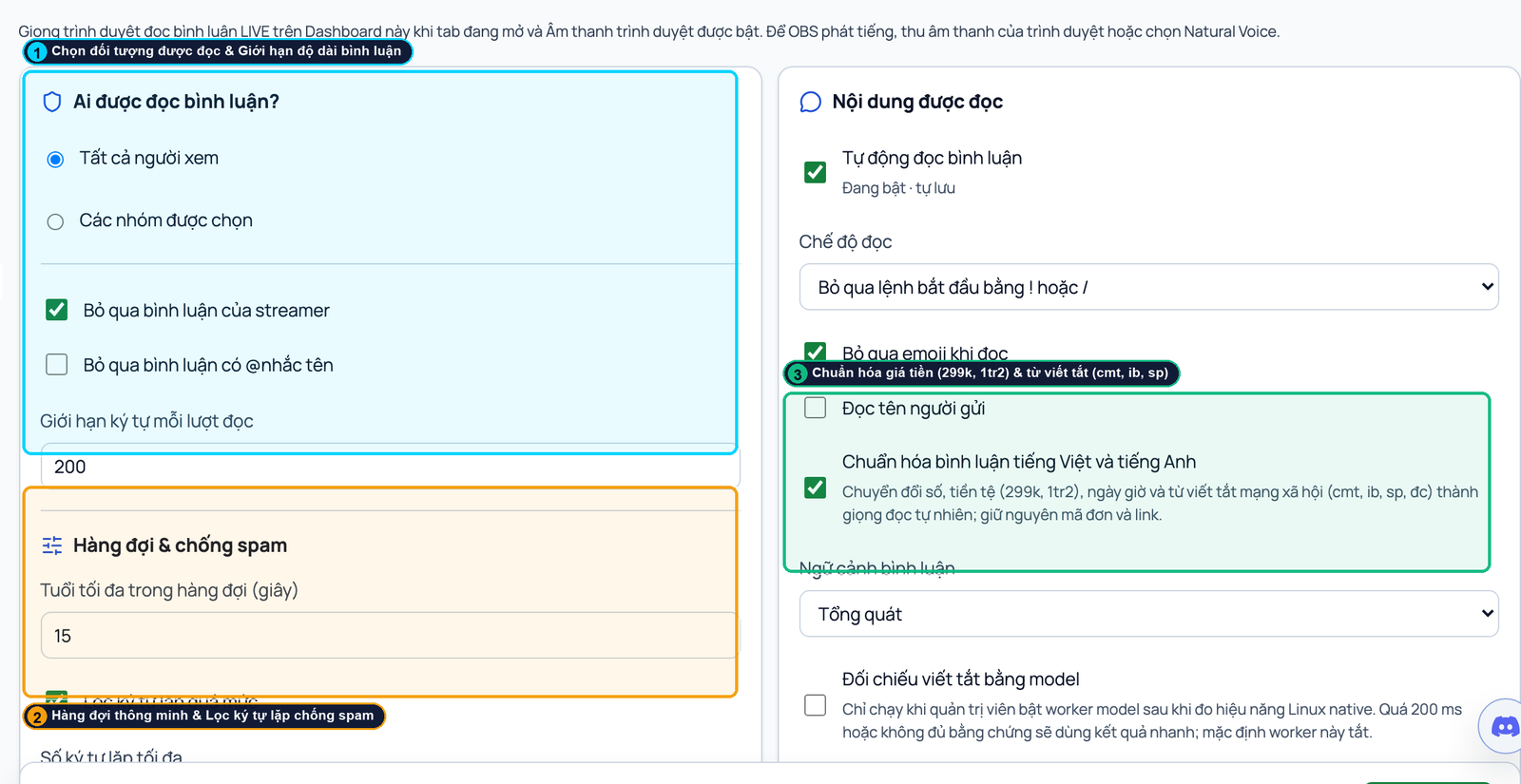
- Length & Symbol Sanitization: Automatically strips repeated punctuation, URLs, phone numbers, and emoji strings before speaking.
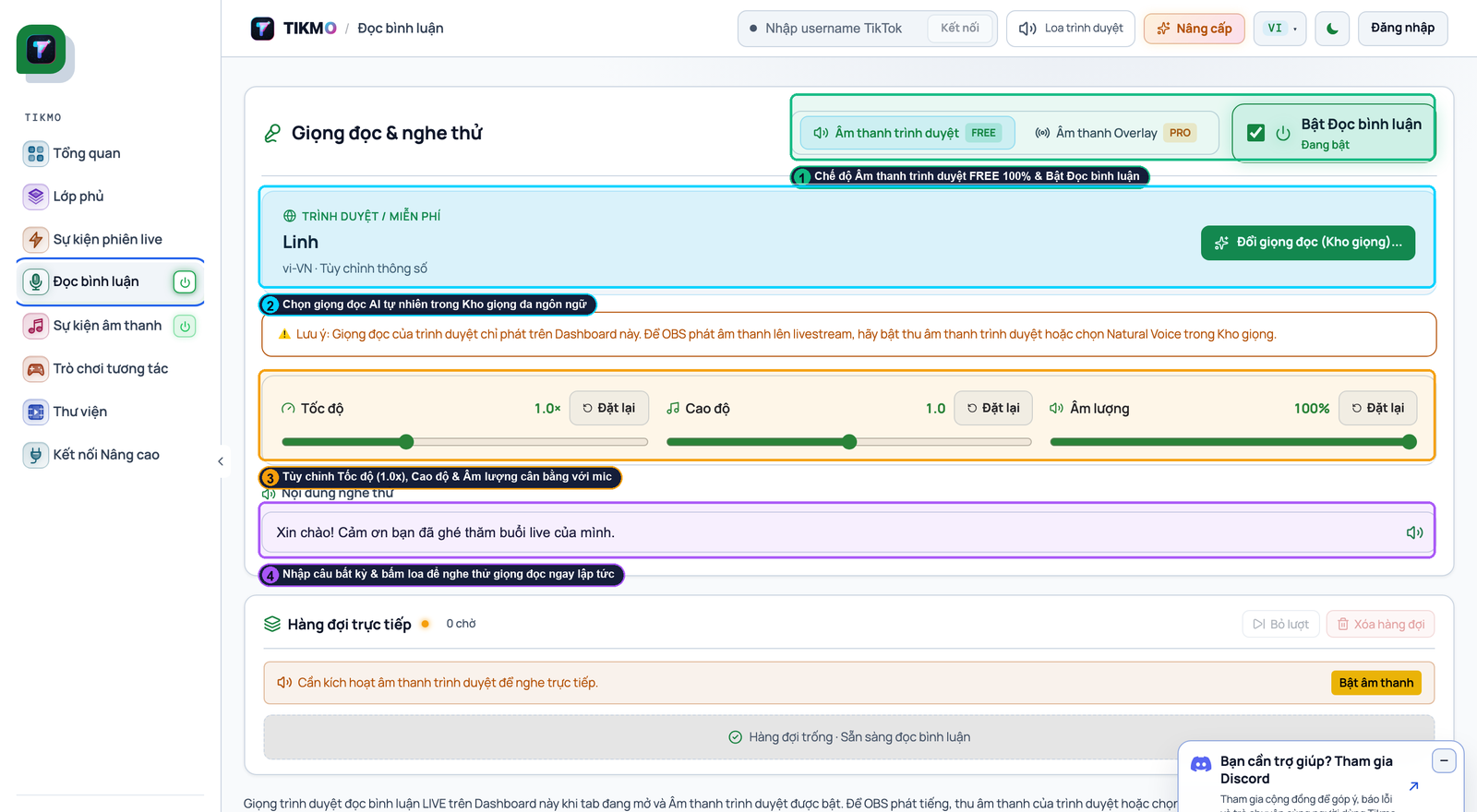
- Audio Ducking & Cooldowns: Keeps TTS volume 6–9 dB below your main microphone so your voice always stays front and center.
Pro Tip from Tikmo Studio: Use a dedicated trigger prefix (such as!askor!tts) during peak traffic hours so only intentional questions are read aloud on stream.
4 Steps to Set Up TikTok LIVE TTS in Tikmo Studio
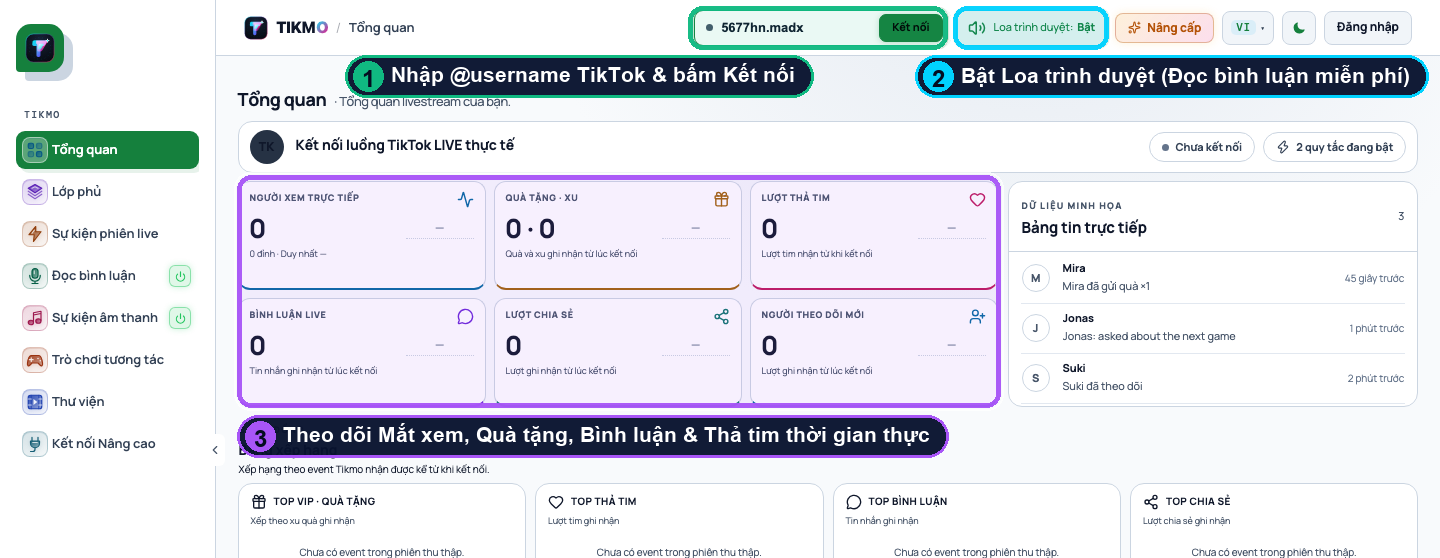
1. Connect Your Live Room: Open Tikmo Studio, enter your TikTok @username, and verify the live connection badge turns green.
2. Choose Your Voice Engine: Open the Comment Reader (TTS) tab, preview browser/system voices or cloud AI voices, and set speaking rate between 1.0x and 1.15x.
3. Configure Filters & Cooldowns:
- Set minimum comment length to 3 characters and max spoken length to 120 characters.
- Enable the profanity/PII blocklist to prevent phone numbers or spam phrases from being spoken.
- Set per-user cooldown to 10–15 seconds so no single viewer monopolizes the audio queue.
4. Balance Audio in OBS: Route your browser audio or overlay source into OBS Audio Mixer and keep TTS peaks around -14 dBFS while your vocal mic sits at -6 dBFS.
Combine your TTS reader with TikTok LIVE gift alerts and interactive games like Fantasy Chibi War to create a responsive, TV-grade broadcast.