Designing a 9:16 Vertical TikTok LIVE Overlay: Safe Zones & Mobile Layout Guide
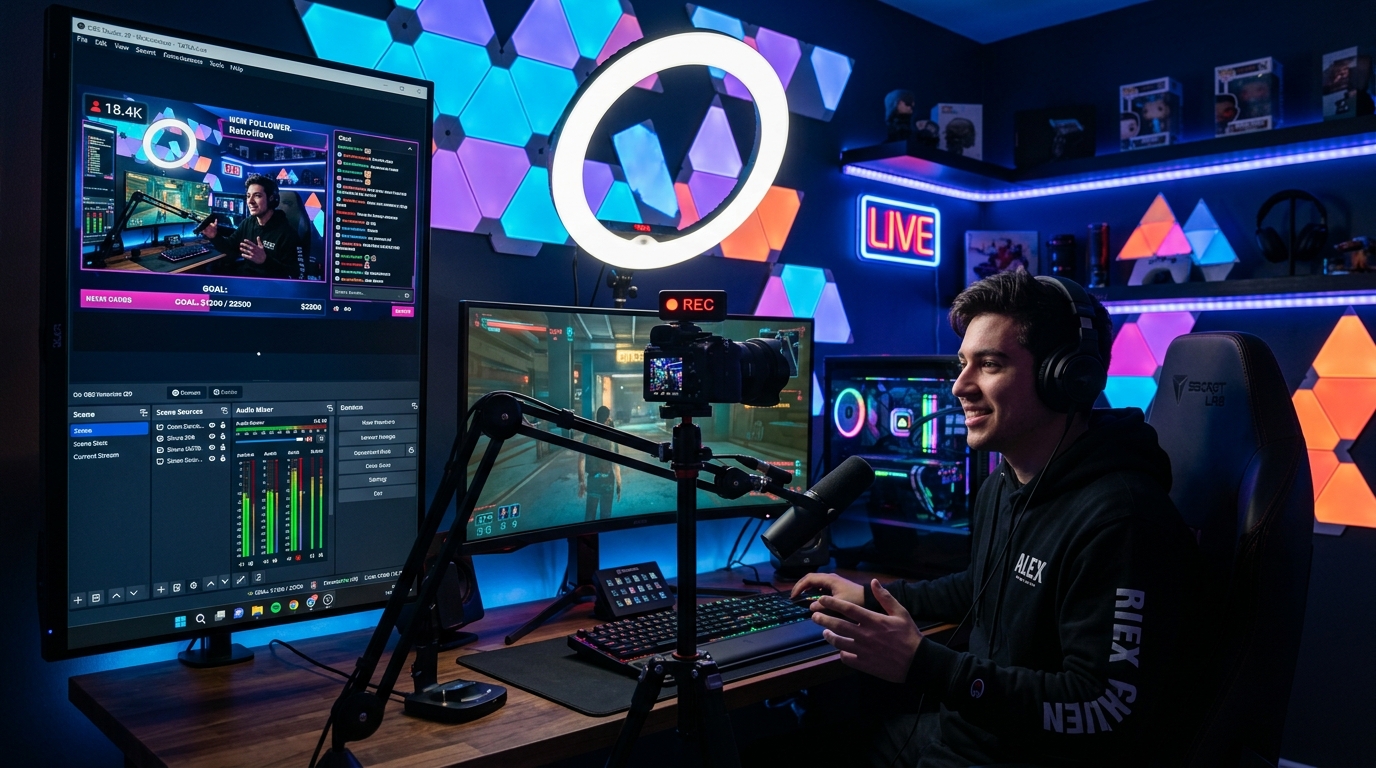
Avoid TikTok’s native chat, gift tray, and profile header by placing your alerts, goal bars, and leaderboards inside the 9:16 safe zone.
The #1 mistake creators make when moving from Twitch or YouTube to TikTok LIVE is reusing a 16:9 landscape layout or placing widgets along the bottom 35% of a vertical canvas—right where TikTok's mobile app renders the scrolling chat and gift buttons.
Understanding the 1080x1920 TikTok LIVE Safe Zone Map
On a standard 1080x1920 vertical canvas, divide your screen into three vertical zones:
- Top 15% (Y: 0–280px — Header & Follow Bar Zone): Keep this area free of small text; place your TikTok LIVE gift goal overlay slightly below
Y: 260pxso the host avatar and LIVE badge never cover it. - Middle 50% (Y: 280–1240px — Primary Visual Stage): Your main camera, product showcase, or interactive battle arena belongs here, along with transient gift alerts and viewer leaderboards.
- Bottom 35% (Y: 1240–1920px — Native Chat & Gift Tray Zone): Avoid putting critical text or scores in the bottom-left (chat overlay) or bottom-right (like/gift buttons).
Pro Tip from Tikmo Studio: Use the multi-layer Canvas editor in Tikmo Studio to lock safe-zone guides in place before copying your single Browser Source URL into OBS.